Mantis BT allows efficient and flexible services to report bugs and track them. In Mantis Bug tracker Account Management the administrator account has privileges to manage the complete account such as managing user accounts, manage configuration, project management, managing custom fields, etc.
Let us understand each function:
Manage Users
Mantis Bug tracker Account Management allows unlimited user accounts to be created. Only an administrator has access to create user accounts.
- To create a user, go to Manage -> Manage Users -> Create New Account.
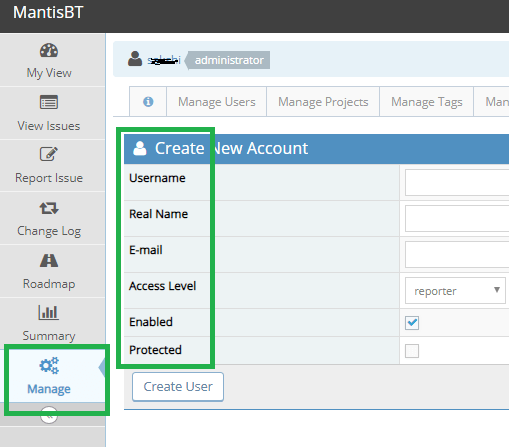
- Fill in the fields username, real name, email, access level, user enabled or not, protected. When a user account is protected, it means that the account is a shared account (e.g. demo account) .The access levels can be:
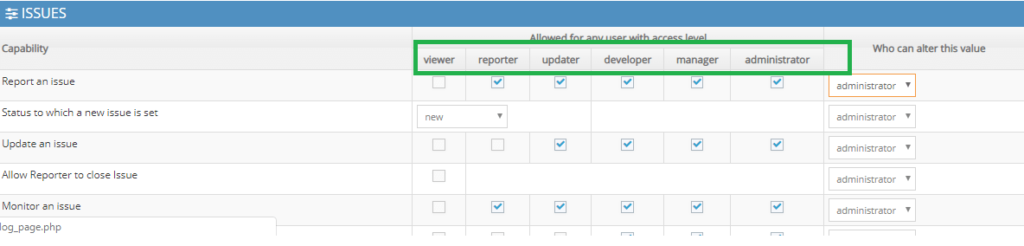
- Viewer: Login and View Issues
- Reporter: Report and comment on issues
- Updater: update the issues
- Developer: View private issues, view reports.
- Manager: Manage projects including versions and custom fields
- Administrator: Manage the entire account and communicate with the support team.
Permissions for each user role can also be changed and set from the Manage Configuration Page.
- On creating a successful user account, a list will be displayed of all user accounts. The user name is a link, on clicking the user will be redirected to the user details page.

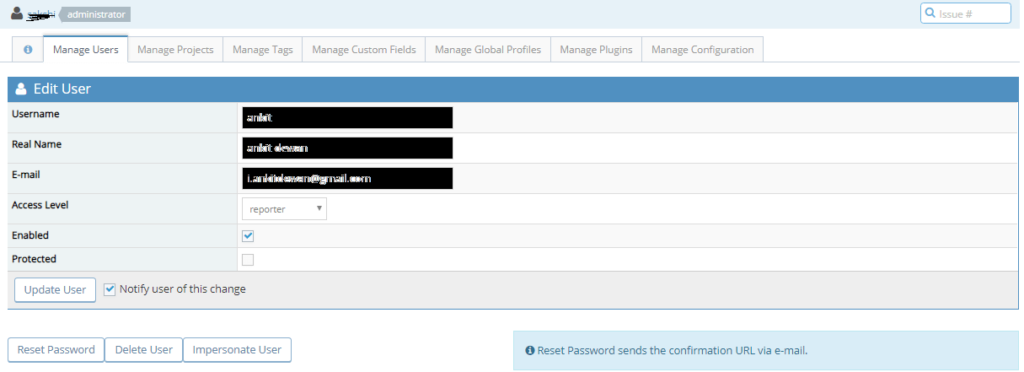
- From the user details page, the administrator is able to:
- Edit User Details: Edit personal details of the user such as real name, email, etc. The user will be notified of the changes via email.
- Reset Password: To change the password, an email notification will be sent to the user.
- Impersonate User: To check the user account by logging in the account through this button
- Delete User: To permanently remove the user.
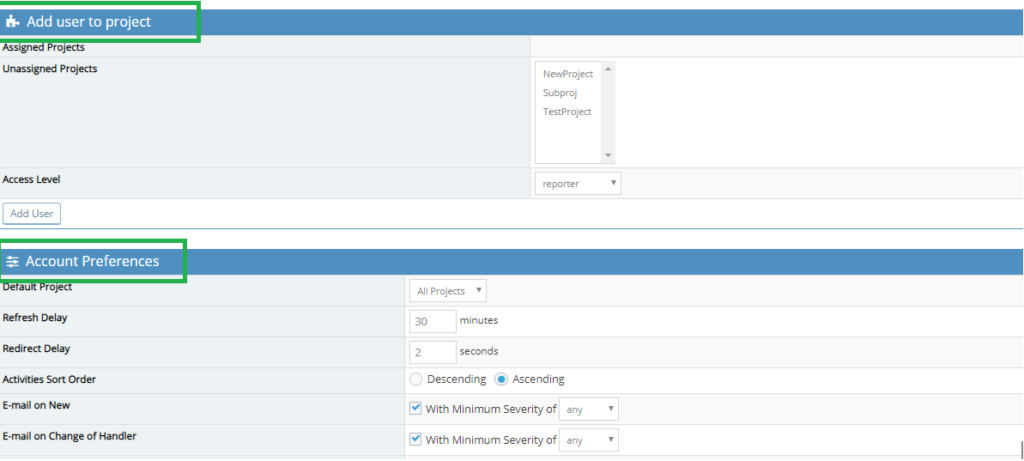
- Add users to project: Assign projects to the user and set the access level to the projects.
- Account Preferences: Set account preferences such as email, time zone, account activities etc.
Manage Projects
Project Management has been taken in separate tutorial.
Manage Tags
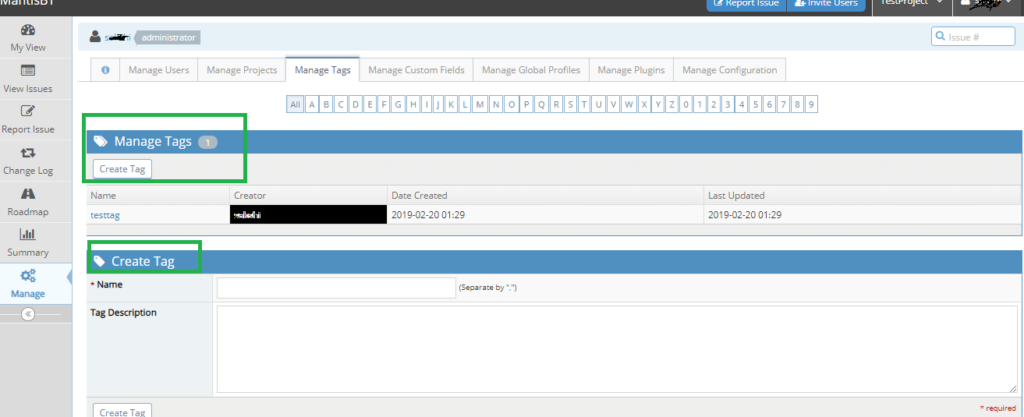
Create tags to add these tags to bugs. A tag can be created by tag name and description. A list of tags will be displayed with: tag name, tag creator, date created and last updated.
Manage Custom Fields
Custom Fields can be added through “Manage Custom Fields” tab.
- Add the custom field name and click on add custom field.
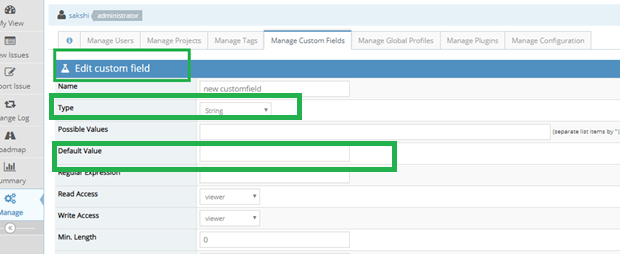
- “Edit custom field” page will open. Fill in the details:
- Type: Select type from dropdown such as
- String: Up to 255 characters
- Numeric: Integer values
- Float: Real Numbers
- Enumeration: It will show some values like red, green, orange.
- Checkbox: Values are shown as checkboxes.
- Date: The possible values of date can be {today}, (12th December 2019},{+2 days} etc.
- Email etc.
- Possible Values. Default Values: Set the possible value by using “|” as separation mark and select one default value out of that. The empty field can also be a possible value.
- Max length and Min Length: It will show the length of the input value allowed in the custom field box. Minimum value 0 will disable the custom field.
- Set read and write access level: The level of the user so that he can see the custom field and edit the value of the custom field.
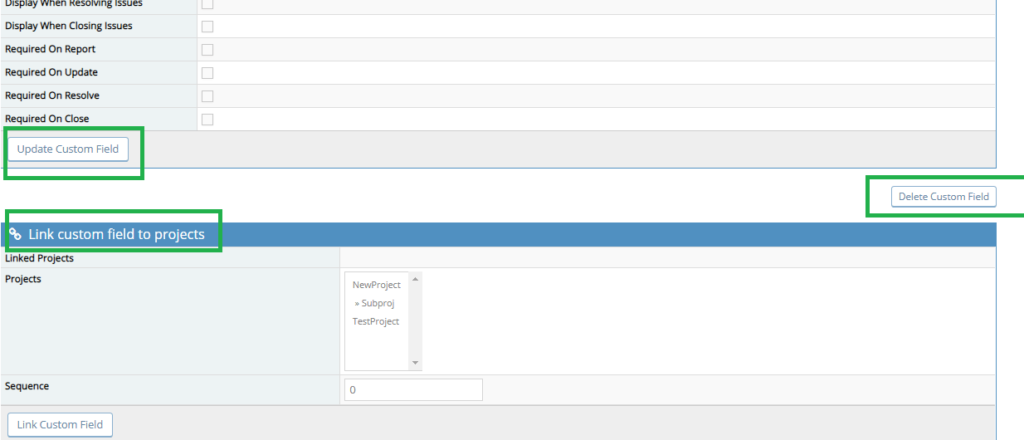
- Select the checkboxes to set where the custom field would be displayed.
- Show in Filter: The admin can choose to show the custom field in “Filters”
- Link the custom field to projects: The user can select the project to which this custom field should be shown and click on Link.
- Sequence number: It will order the order of custom fields.
- If no value of the custom field is entered then it will take default value as input.
- If an issue is moved from one project with custom fields to another project without custom fields, then the custom fields data is not deleted but saved in the database so that when the issue is again moved to project having custom fields its value is restored.
- MantisBT has some dynamic possible values, these include the following:
- =categories – a list of categories defined in the current project (or the project to which the issue belongs).
- =versions – a list of all versions defined in the current project (or the project to which the issue belongs).
- =future_versions – a list of all versions that belong to the current project with the released flag set to false.
- =released versions – a list of all versions that belong to the current project with the released flag set to true.
Manage Global Profiles
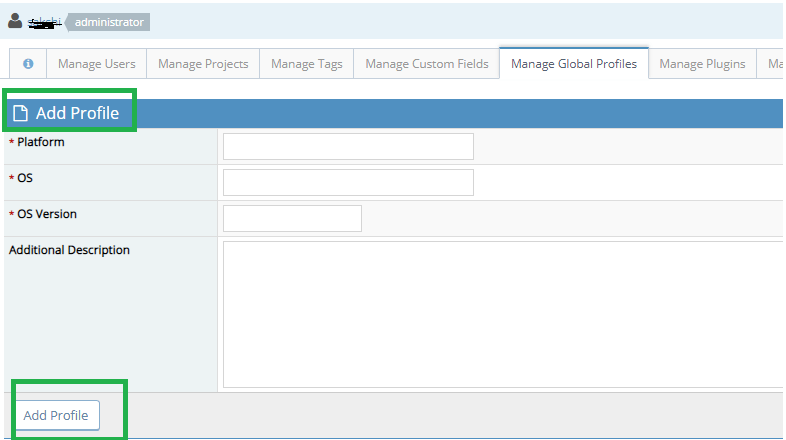
Manage Global Profile is used to set the profile of the environment used in testing in advance. When a tester is reporting a bug, he is able to fill in details of operating systems. If a global profile is already created, then the details of OS will be automatically added and not asked from the tester. To add a global profile set Platform, OS, OS Version, add some description and click on add profile.
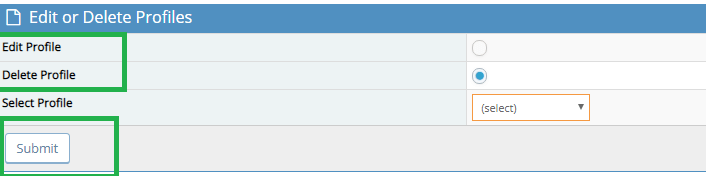
Once s profile is added, the admin can edit, delete or select a preferred profile from the dropdown.
Manage Plugins
Mantis Bug Tracker has some plugins which are already installed and available for update while some of the plugins are new and need to be installed.
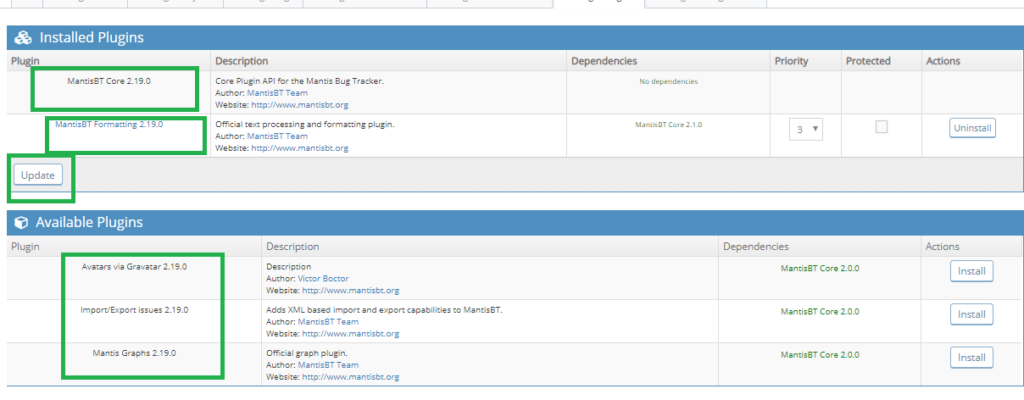
In the above screenshot, MantisBT Core 2.19.0 is installed and no updates are available.
MantisBT Formatting 2.19.0 is installed but there is an update for it.
New Plugins are available for installation. Avatars, Export/Import, and Graphs plugins can be installed by admin for new enhanced features.
Each plugin requires some pre-installation features which can be seen in “Dependencies: tab.
Priorities determine the order in which the plugins are registered and callbacks are executed.
Conclusion
Mantis Bug Tracker Account Management allows the administrator to manage the mantis account through the “Manage “ tab. The administrator is authorized to add users, assigns roles, reset password, set custom fields, add tags to the project. Plugins are also installed, updated from the Manage Plugins page. Mantis offers a strong administration feature for users. It is recommended to choose Mantis Bug Tracker as a defect management tool.
⇓ Subscribe Us ⇓
If you are not regular reader of this website then highly recommends you to Sign up for our free email newsletter!! Sign up just providing your email address below:
Happy Testing!!!